

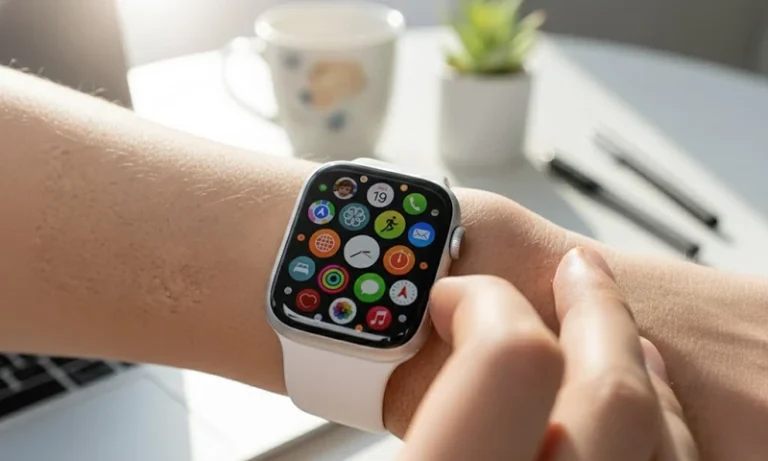
Learning how to silence Apple Watch only takes about ten seconds, once you know which method is appropriate for the situation. The quickest is to touch your palm over the screen, killing incoming sound instantly. (As a side note, there are valid reasons to use Silent Mode, Do Not Disturb and Theater Mode for sustained quiet, though using the wrong one can lead to people hearing noise after you thought you muted everything.)
Here’s a quick breakdown before getting into each method:
| Method | Silences Sound | Silences Haptics | Screen Stays Dark | Best For |
|---|---|---|---|---|
| Cover to Mute | Yes | No | No | One-off interruptions |
| Silent Mode | Yes | No | No | All-day quiet |
| Do Not Disturb | Yes | Yes | Yes | Meetings, focus time |
| Theater Mode | Yes | Yes | Yes | Cinemas, dark events |
| Focus Mode (synced) | Yes | Yes | Customizable | Scheduled routines |
Cover to Mute: The Fastest Fix
If your watch buzzes at an awkward time, and you need complete silence right away, put your palm flat against the screen and hold it down for about two seconds. The alert sound stops. That’s it.
One thing you won’t find in most guides: this gesture just kills the sound. Your watch still vibrates for the current alert all future ones. In a quiet room where wrist taps are audible, Cover to Mute isn’t sufficient alone.
This is not going to help until you enable the setting. For this, open the Settings app on your Apple Watch, tap Gestures then enable Cover to Mute. This is enabled by default on newer watchOS versions, but check here if the gesture isn’t working.
Silent Mode: Off Sound, On Haptics
Silent Mode is the everyday workaround for people who want zero audio without losing the physical tap feedback. It’s similar to the way you use the mute switch on an iPhone, the watch made a tactile sound, but it stayed quiet.
To enable it: Swipe down on your iPhone to open Control Center, and tap the bell icon. And a line through the bell means it’s active. Now here’s where people get thrown off. Silent Mode does not mute haptic ones. You’ll still feel every notification on your wrist. If someone messages you in a meeting and you’re sitting still, the tap is noticeable. For situations where complete stillness matters, Do Not Disturb is the better call.
How to Silence Your Apple Watch Completely with Do Not Disturb
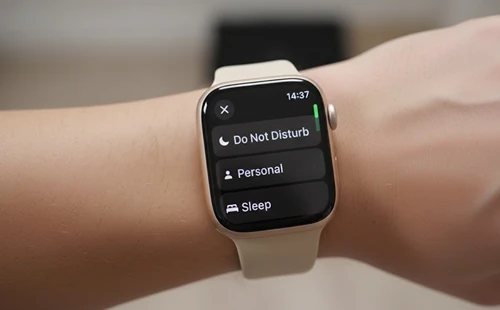
Do Not Disturb cuts both sound and haptics. Notifications still come and stack up, you just won’t hear them or feel them until you turn DND off.
Swipe up from the watch face to access Control Center, tap on crescent moon icon followed by Do Not Disturb. If you’re running watchOS 10 or later, you can also set a duration directly from this menu: for one hour, until evening or until you leave your location.
Here’s one edge case to be aware of: If someone tries calling you twice, within three minutes of each other, Do Not Disturb lets the second call through by default. This is the Emergency Bypass behavior from Apple. Disable it in your paired iPhone under Settings > Focus > Do Not Disturb > Calls.
Theater Mode for Dark Environments
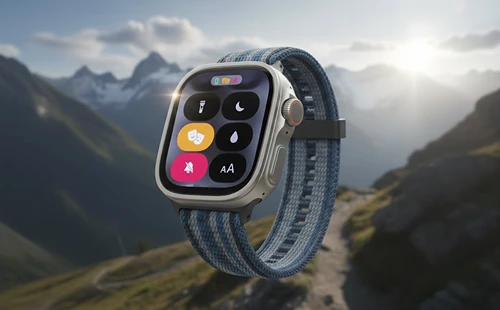
Theater Mode is silence and a dark screen. The watch face doesn’t wake when you raise your wrist, the display is activated only when you deliberately tap it. That renders it perfect for cinemas, live performances or anyplace that watch-face ambient light would be rude.
On most new phones, swipe up to access Control Center and tap the theater masks icon (two overlapping faces). The icon turns orange when active. Unlike Do Not Disturb, Theater Mode doesn’t suppress haptics by itself in all watchOS configurations. In testing, some alert types still produce a subtle tap depending on your notification settings. If you need zero feedback, layer Theater Mode with Silent Mode.
Focus Modes: The One Method Most Guides Skip
If you already use Focus modes on your iPhone, Sleep, Work, Personal, or a custom one you’ve built, those sync to your Apple Watch automatically. When your iPhone enters Work Focus, your watch follows. No manual setup needed per device.
You can customize which apps and contacts break through during each Focus. Open Settings > Focus on your iPhone, tap a mode and make sure that Share Across Devices is enabled. This is the most robust long-term solution for anyone who wants a scheduled silence without needing to remember toggling anything.
Pro Tips Most Guides Miss
Testing across different watchOS versions shows a consistent pattern: people turn on Silent Mode and then wonder why the watch still vibrates. That’s by design. Apple treats sound and haptics as separate channels, you have to address both intentionally.
A few things worth knowing that rarely appear in basic tutorials:
| Hidden Setting | Where to Find It | What It Does |
|---|---|---|
| Taptic Chime | Settings > Accessibility > Taptic Chime | Fires a haptic tap on the hour even in Silent Mode, disable it separately |
| Prominent Haptic | Settings > Sounds & Haptics > Prominent Haptic | Adds an extra pre-tap before certain alerts, disabling it reduces vibration intensity noticeably |
| Remote Mute via iPhone | Watch App > My Watch > Sounds & Haptics | Lets you silence the watch from your iPhone when it’s charging in another room |
FAQ
How do I mute my Apple Watch without turning it off?
Does Silent Mode on Apple Watch still vibrate?
What is Theater Mode on Apple Watch?
Is it possible to mute my Apple Watch using my iPhone?
Does my Apple Watch still make noise on silent?
How do I disable haptic alerts on Apple Watch?
What to Do Right Now
Select the method that fits your most common situation and configure it today. If you’re in meetings often, set up a Work Focus mode on your iPhone so that your watch mutes automatically on a schedule. If you’re a lightweight who just needs to mute from time to time, be sure Cover to Mute is turned on, it takes ten seconds and saves fumbling around in menus.
For deeper Apple Watch customization, Apple’s official watchOS support documentation at support.apple.com covers Focus mode configuration in detail. The related guides on [managing Apple Watch notifications] and [customizing Apple Watch Control Center] cover the next logical steps for getting full control over how your watch communicates with you.