
Windows Update error 0x80070643 indicates that an update failed to install, typically because system files are corrupted or broken. NET Framework, a misaligned WinRE partition, or a frozen Windows Update service. Most people get it right in 15 minutes or less, using the steps below.
These guides cover all known causes and fixes through 2026, including the KB5034441 issue affecting the sure-win partition, which Microsoft has acknowledged, but most other guides ignore.
What’s Actually Causing Your Error (Guide with Quick Reference Table)
| Cause | Who It Affects | Fix to Jump To |
|---|---|---|
| Corrupted Windows Update cache | Windows 10 and 11 | Step 1: Clear SoftwareDistribution |
| Broken Windows Update service | All Windows versions | Step 2: Restart Update Services |
| KB5034441 WinRE partition too small | Windows 10 22H2 users mainly | Step 3: Resize WinRE Partition |
| Corrupted system files | All Windows versions | Step 4: Run SFC and DISM |
| Broken .NET Framework | Apps-dependent updates | Step 5: Repair .NET Framework |
| Third-party antivirus blocking files | Users with McAfee, Norton, etc. | Step 6: Disable Antivirus Temporarily |
Identify your situation in this table first, it’ll save you from running every fix blindly.
How to Fix The Windows Update Error 0x80070643
Step 1: Clear the Windows Update Cache
It’s also the solution that most guides tuck under the header “at least try this last option,” and then end up providing you with a few minutes of positive space while fixing the error much faster than anything else. One of the most common causes for failed installation is `stale or corrupted cache files in the SoftwareDistribution folder.
Next, launch the Command Prompt in admin mode and input the following commands one by one:
net stop wuauserv
net stop bits
ren C:\Windows\SoftwareDistribution SoftwareDistribution.old
net start wuauserv
net start bits
This stops the update service, renames the old cache folder (so Windows builds a fresh one), then restarts the service. Retry Windows Update after this. A significant number of 0x80070643 errors resolve here without anything else needed.
If you run into unrelated Windows software issues while troubleshooting, installing OpenClaw on Windows is a good example of how clean installations should go, useful context if you’re dealing with repeated app conflicts.
Step 2: Restarting the Windows Update Services
A glitch in the core Windows Update service stack is next worth ruling out if clearing the cache doesn’t help.
Press Windows + R, type services.msc, and press Enter. In the Services list, find each of these and right-click to Restart:
| Service | Why It Matters |
|---|---|
| Background Intelligent Transfer Service (BITS) | Handles background file downloads for updates |
| Windows Update | Core service managing the update process |
| Cryptographic Services | Validates digital signatures on update files |
Don’t just stop and start them individually. Restart each one in the order listed, BITS has a dependency relationship with Windows Update that matters here.
Step 3: Fix the KB5034441 WinRE Partition Error (Windows 10 Users)
Frequent read that most of guides out there they totally miss it. Beginning in late 2023, Microsoft’s KB5034441 security update started failing with the error code 0x80070643 on Windows 10 devices with a Windows Recovery Environment (WinRE) partition smaller than 250MB. This was becoming one of the most common reasons for this very error code.
Microsoft’s official workaround requires resizing the recovery partition using diskpart. This is the most technically involved fix in this guide, if you’re not comfortable with diskpart commands, consider reaching out to a technical support professional or referencing Microsoft’s official KB5034441 guidance directly before proceeding.
To confirm this is your issue: if the failing update in your history specifically shows KB5034441, this step applies to you.
Step 4: Run SFC and DISM
Corrupted Windows system files will block update installations at the file-writing stage. The System File Checker and DISM tool together cover both the Windows image and individual protected files.
Open Command Prompt as Administrator and run:
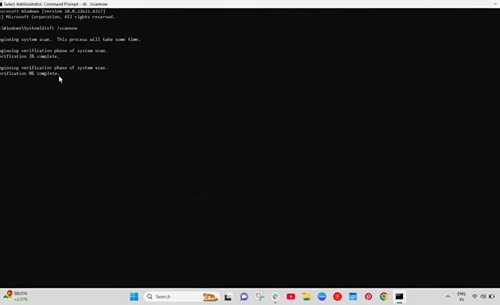
sfc /scannow
Wait for it to complete fully, this can take 10-20 minutes. Then run:
DISM.exe /Online /Cleanup-image /Restorehealth
DISM connects to Windows Update servers to pull clean replacement files, so you’ll need an internet connection. If DISM reports it can’t contact Windows Update, that’s a secondary problem worth noting, it may indicate a deeper network or DNS issue on your machine.
Step 5: Repair the. NET Framework
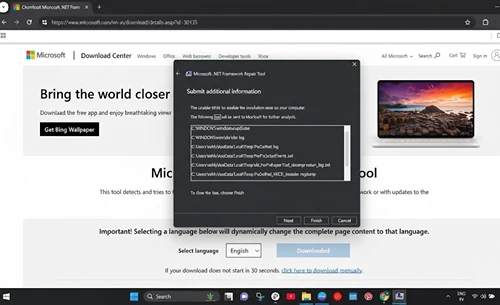
If the failing update is related to an application runtime — which can be particularly the case for Microsoft Office updates or certain security patches, a dead. NET Framework install is the silent offender. The framework also doesn’t provide clear error messages, and that’s what makes this one easier to miss.
Download the official .NET Framework Repair Tool from Microsoft, run it with administrator rights, and follow the prompts. Restart your PC afterward, then retry the update.
No manual uninstall and reinstall..NET NET Framework versions — the repair tool manages dependency chains better than manual removal that often breaks more.
Step 6: Disable Third party Antivirus Temporarily
Software security from vendors such as McAfee, Norton or Bitdefender use hooks in the file system that can interfere with the functioning of Windows Update by intercepting and blocking its file writing actions. But this is a real false-positive case, not an indication that your antivirus is acting up.
Temporarily turn off the antivirus real-time protection, try to update and enable back right away! This issue is one faced by third party products only. Windows Defender doesn’t contribute to it.
Expert Tips: What Usually Goes Wrong
A few things trip people up that aren’t obvious from standard instructions:
| Common Mistake | What To Do Instead |
|---|---|
| Running SFC before DISM on a severely corrupted system | Run DISM first to restore the image, then run SFC |
| Keeping SoftwareDistribution.old after a successful update | Delete it, it just takes up disk space |
| Ignoring free disk space | Windows needs at least 10-15GB free to stage major updates |
| Stopping after one successful update | Run Windows Update again, one failed update often holds back several others |
The correct order for severe corruption is actually DISM followed by SFC, whereas running SFC before DISEM is backwards. If the system image itself is corrupted, SFC has no valid replacements. First, DISM is used to restore that image, afterwards SFC looks for and repairs individual files based on that clean image.
The SoftwareDistribution. To delete hard old one after successful update. It uses up space and is useless after the fresh cache starts working.
Last but not least, Disk space. Windows needs at least 10-15 GB free space to download and install big updates. The cause is rarely logged for 0x80070643, but it reliably triggers when low on space.
After an update is successful, promptly reboot Windows Update. Because a failed update prevents others from going forward, running this again ensures that the backlog clears correctly.
FAQs
Why Did I Get Windows Update Error 0x80070643?
How do I reset Windows Update cache?
Can antivirus prevent Windows updates?
How do I repair. NET Framework on Windows?
Is error 0x80070643 limited to Windows 10 or Windows 11?
What To Do Right Now
Start with step 1 (clearing the SoftwareDistribution cache), it’s the least-risky fix, takes less than two minutes to do, and fixes the error for most users. If you are running Windows 10 and the delete update is KB5034441 specifically, as is usually the case with this issue, go straight to Step 3 and also look up Microsoft’s official partition resizing documentation before going ahead.
If you still see the error after trying any of the above steps, Microsoft’s support team can run diagnostics right against your Windows Update log files, you can reach them at support. microsoft. com with your CBS. CBS.log file located in C:\Windows\Logs\CBS, which holds the specific failure record associated with your update attempt.
Once your system is fully updated and stable, it’s a good time to review other Windows 11 features you might have overlooked. The Game Bar Windows 11 setup and recording guide walks through getting that configured properly, and if you ever want to manage your Google account settings after a system refresh, changing your Gmail address without losing data is worth a read too.